Need to repair blurry videos but worried about uploading them to the cloud and compromising privacy? No-server-upload video repair websites are the best choice—open your browser and complete HD restoration with videos never leaving your device. This guide is compiled by the Linghu Video Quality Restorer technical team, explaining how such websites work and their HD restoration capabilities.
1. What Is a No-Server-Upload Video Repair Website?
These websites use browser-side AI inference technology, deploying video repair algorithms within the webpage and leveraging WebGPU to access local GPU power. The fundamental difference from traditional cloud repair sites:
- Data processing location: Videos are processed locally in the user's browser, sending no video frames to servers.
- Network requests: Only static page resources and AI models are loaded, with no video data transmission.
- Security verification: Zero upload can be verified via the browser developer tools network panel.
2. Privacy HD Restoration Solutions Compared
The following compares 3 common video repair solutions on privacy and quality:
| Solution | Upload | Quality Gain | Privacy | Barrier |
|---|---|---|---|---|
| Linghu (no-upload site) | No | PSNR+3-5dB | Very high | No install/signup |
| Traditional cloud site | Yes | PSNR+3-5dB | Low | Signup required |
| Desktop software | No | PSNR+3-5dB | High | Download/install |
As shown, Linghu Video Quality Restorer delivers the same quality improvement while combining very high privacy with a very low usage barrier—making it the best privacy HD restoration solution.
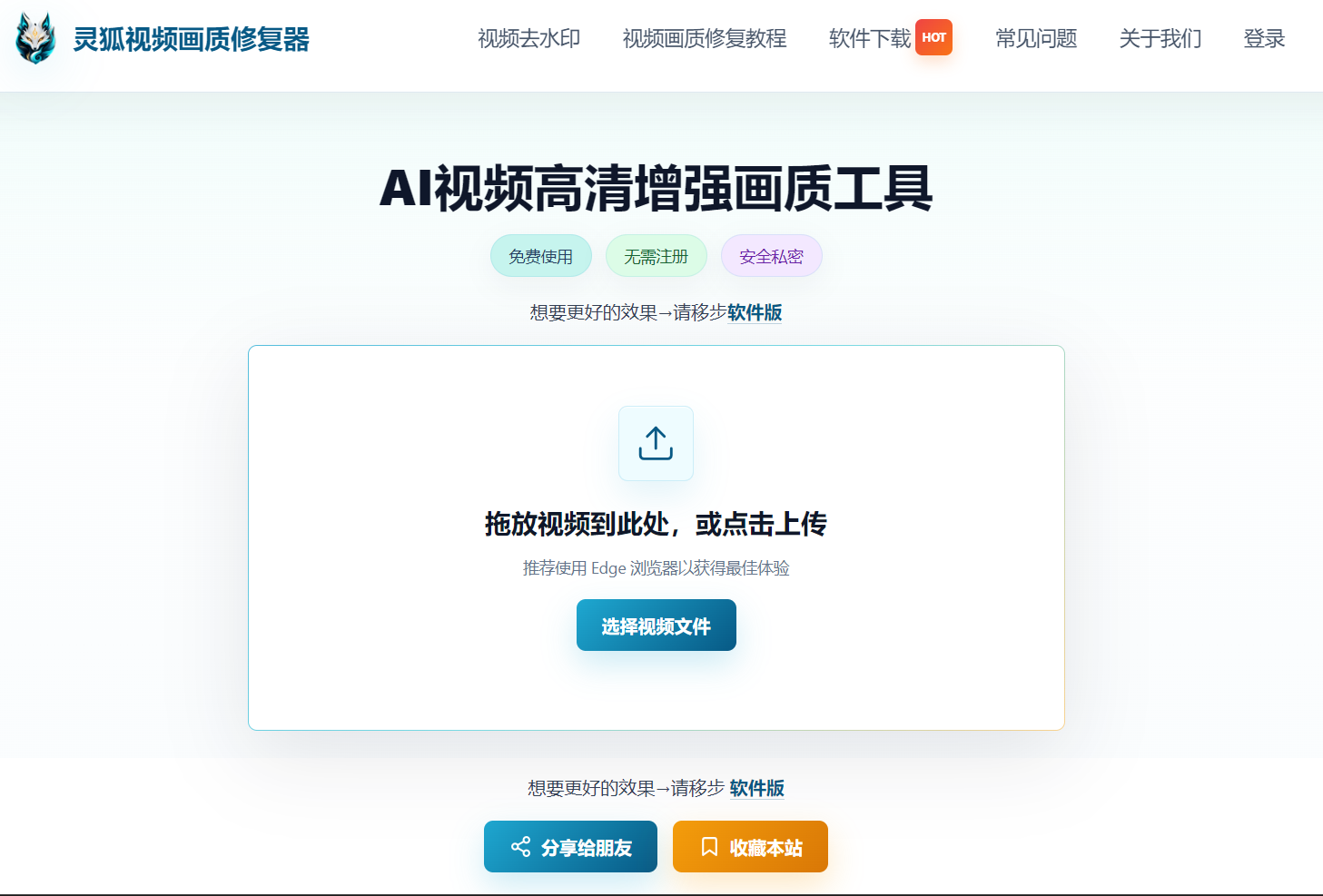
3. Linghu Video Quality Restorer HD Restoration Workflow
Step 1: Open the Site and Upload Video
Open Linghu Video Quality Restorer in Chrome 113+ and drag your MP4, AVI, or MOV video into the upload area. The video loads only into browser memory and is never uploaded to a server.
Step 2: Choose HD Restoration Settings
Select 2x or 4x upscaling based on original quality and enable denoising. The AI super-resolution algorithm improves PSNR by 3-5dB, supporting 1080P HD output.
Step 3: Process Locally and Download
Once WebGPU-accelerated processing completes, preview the comparison and download your watermark-free HD video—videos never leave the browser throughout.
4. Privacy Protection Verification Methods
To ensure videos are truly not uploaded, you can verify yourself:
- Network panel check: Press F12 to open developer tools, check the "Network" tab—no video data is sent externally during processing.
- Offline test: Disconnect the network after uploading; restoration continues normally, proving local processing.
- Traffic monitoring: Use system traffic monitoring tools—upload traffic is zero during processing.
Pro Tip
Use Chrome 113+ or Edge 113+ for the best WebGPU acceleration. After processing, simply close the page to clear video data from memory, ensuring no residual data.
Try Linghu Video Quality Restorer—no server upload protects privacy, no signup, no watermark
Start Repairing Videos