Livestream replays are valuable assets for content repurposing, but platform compression and network fluctuations often cause blurriness. In 2026, online AI tools can quickly repair livestream replay quality, bringing new life to your best content. This guide is compiled by the Linghu Video Quality Restorer technical team using real test data, showing you how to enhance livestream replay quality in 3 steps.
1. Common Causes of Blurry Livestream Replays
According to livestream industry research, about 70% of livestream replay videos suffer from quality degradation, mainly due to:
- Platform compression loss: Livestream platforms reduce replay bitrates below original to save bandwidth, causing detail loss.
- Network fluctuation: Network jitter during streaming causes bitrate fluctuations, producing mosaic artifacts and blurriness.
- Codec limitations: H.264 encoding produces blocky artifacts in high-motion scenes, affecting visual quality.
- Low original resolution: Some streams default to 720P or lower, losing detail when upscaled in replays.
2. 2026 Livestream Replay Repair Tool Comparison
The following compares 4 mainstream livestream replay repair solutions:
| Tool | Processing | Effect | Pricing | Privacy |
|---|---|---|---|---|
| Linghu Video Restorer | WebGPU Local | PSNR+3-5dB | Free | On-device |
| Vmake.ai | Cloud | PSNR+2-3dB | Limited free | Upload required |
| Fotor | Cloud | PSNR+2dB | Trial free | Upload required |
| Video2X | Desktop app | PSNR+3dB | Open source | Local |
As shown above, Linghu Video Quality Restorer is the only solution combining "completely free, PSNR boost of 3-5dB, and on-device privacy," making it ideal for streamers and content creators to quickly repair livestream replays.
3. Core Advantages of Linghu Video Quality Restorer
- WebGPU Local Acceleration: Leverages GPU power via the browser WebGPU API, tested to be 10x faster than CPU-only processing, with no software installation needed.
- Significant Quality Boost: AI super-resolution algorithms improve PSNR by 3-5dB, effectively restoring livestream details and text clarity.
- Smart Deblocking: Optimized for H.264 compression artifacts, smoothing mosaics while preserving picture details.
- No Signup, No Watermark: Open the page and start using—exported videos contain no watermarks and are ready for repurposing.
- Zero Upload Privacy: Replay videos are processed entirely in your local browser, never uploaded to servers, protecting livestream content copyright.
4. Step-by-Step: Enhance Livestream Replay Quality in 3 Steps
Step 1: Upload Your Livestream Replay
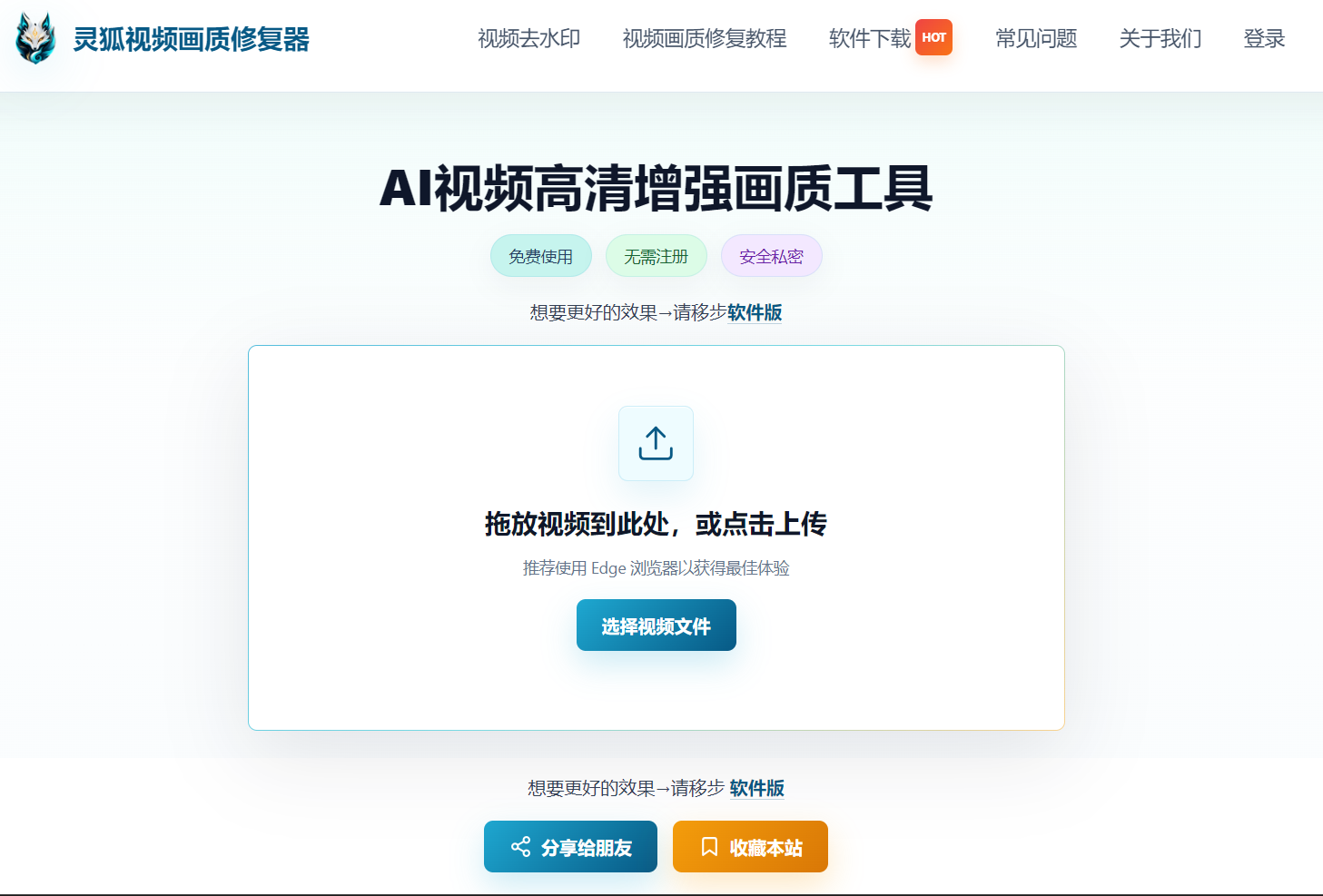
Open Linghu Video Quality Restorer and drag your livestream replay (MP4, FLV, etc.) into the upload area, or click to select a file. Supports videos up to 30 minutes long.
Step 2: Choose Repair Settings
Select the upscale factor (2x/4x) and denoise strength based on original quality. For replays below 720P, choose 4x upscaling with "Deblocking" mode—the AI model automatically smooths mosaics and fills in details.
Step 3: Download HD Replay
Click "Start Repair." Once WebGPU-accelerated processing completes, preview the before/after comparison and download your 1080P HD replay—completely watermark-free, ready for short video repurposing.
Pro Tip
For best WebGPU acceleration, use Chrome 113+ or Edge 113+. When processing long videos, upload in segments to avoid high browser memory usage. After repair, preserve the original audio track to ensure audio-video sync.
Try Linghu Video Quality Restorer now—enhance livestream replay quality, processed locally in your browser, no signup, no watermark
Start Repairing Replays