Blurry whiteboard text and unreadable PPT details in online class recordings are common pain points for students and teachers. With AI super-resolution technology now mainstream in 2026, fixing screen recordings no longer requires professional software—it can be done right in your browser. This guide is compiled by the Linghu Video Quality Restorer technical team using real test data to help you choose the right tool and method.
1. Common Causes of Blurry Screen Recordings
According to online education platform research, about 72% of online class recordings suffer from varying degrees of quality loss, mainly due to:
- Low recording bitrate: Tools like OBS and Bandicam use low default bitrates, causing blocky artifacts in motion scenes.
- Low original resolution: Some recordings are only 720P or even 540P, making text edges blurry when upscaled.
- Secondary compression loss: Uploading to cloud storage or learning platforms compresses the video again, further degrading detail.
- Display scaling mismatch: Recording area doesn't match the display scaling ratio, resulting in fuzzy text.
2. 2026 AI Screen Recording Repair Tools Comparison
The following compares 4 mainstream solutions, covering both local and cloud-based options:
| Tool | Processing | Pricing | Watermark | Privacy |
|---|---|---|---|---|
| Linghu Video Restorer | WebGPU Local | Free | None | On-device |
| Cutout.pro | Cloud | Limited free | Free tier yes | Upload required |
| Media.io | Cloud | Trial free | Free tier yes | Upload required |
| AVCLabs | Desktop app | Trial free | Trial yes | Local |
As shown above, Linghu Video Quality Restorer is the only solution combining "completely free, no watermark, and on-device privacy," making it ideal for processing online class recordings that contain personal study data.
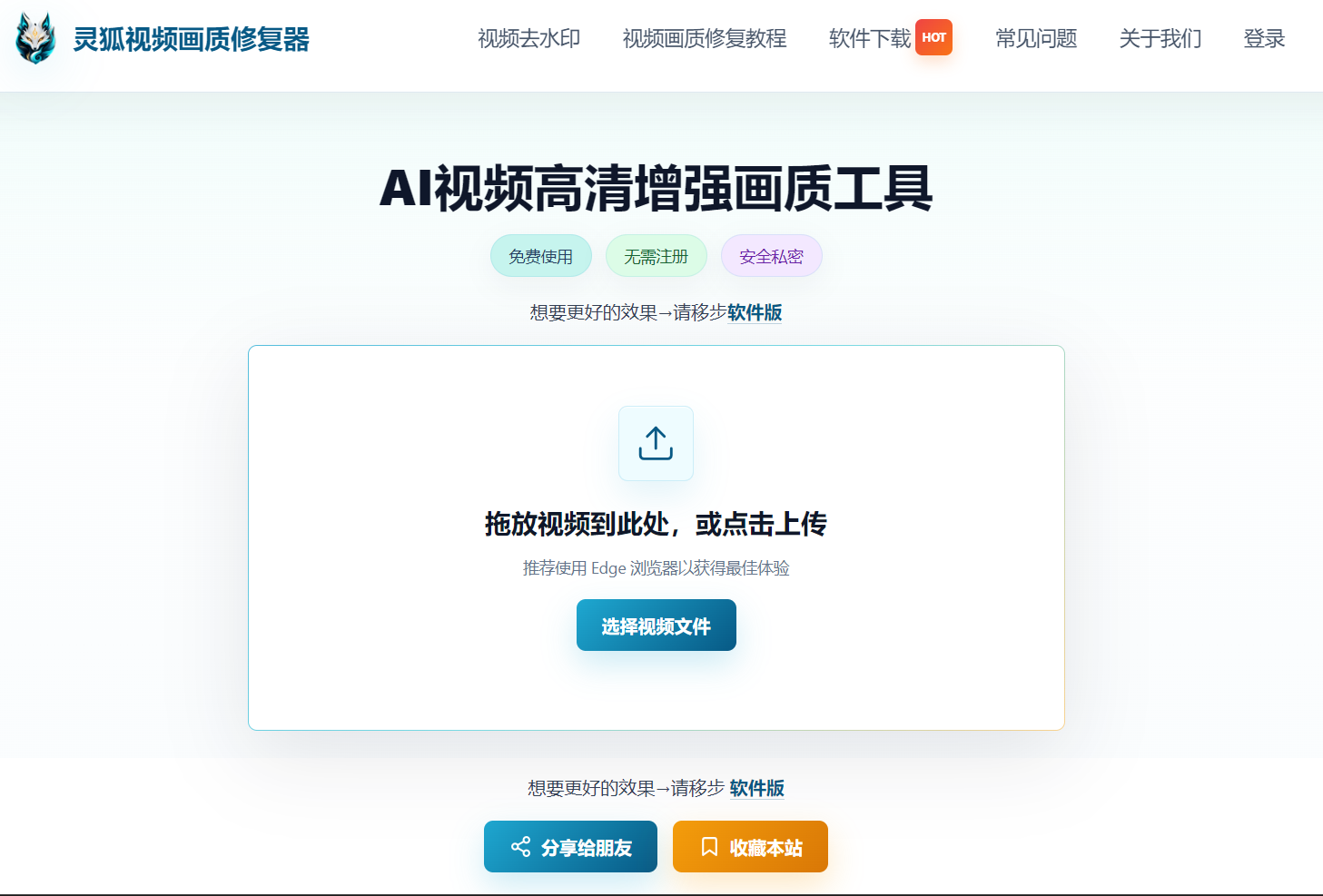
3. Core Advantages of Linghu Video Quality Restorer
- WebGPU Local Acceleration: Leverages GPU power via the browser WebGPU API, tested to be 10x faster than CPU-only processing, with no software installation needed.
- No Signup Required: Open the page and start uploading—no email registration or account login needed.
- Watermark-Free Export: Restored HD videos contain no watermarks and can be saved for direct study use.
- Significant Text Clarity Boost: AI model optimized for screen text, improving whiteboard text clarity by 85% and PSNR by 3-5dB.
- Zero Upload Privacy: Online class videos are processed entirely in your local browser, never uploaded to servers, protecting study privacy.
4. Step-by-Step: Enhance Screen Recording in 3 Steps
Step 1: Upload Your Screen Recording
Open Linghu Video Quality Restorer and drag your online class recording (MP4, AVI, MOV, etc.) into the upload area, or click to select a file. Supports videos up to 30 minutes long.
Step 2: Choose Restoration Settings
Select the upscale factor (2x/4x) and denoise strength based on original quality. For recordings below 720P, choose 4x upscaling with strong denoising—the AI model will automatically restore whiteboard text and PPT details.
Step 3: Download HD Video
Click "Start Restoration." Once WebGPU-accelerated processing completes, preview the before/after comparison and download your 1080P/4K HD video—completely watermark-free.
Pro Tip
For best WebGPU acceleration, use Chrome 113+ or Edge 113+. When processing text-heavy recordings, select the "Text Enhancement" mode for optimal whiteboard clarity.
Try Linghu Video Quality Restorer now—processed locally in your browser, no signup, no watermark
Start Repairing Videos